Android "four point four" (aka KitKat) is what most HTC One users are still eagerly waiting for. The "senseless" version is already available to download via Over The Air (OTA) update on the HTC One Google Play Edition.
If you havent received the update yet, or you dont have a Google Play Edition variant of the HTC One, you can still have a taste of the fresh Google goody. Just navigate to my HTC One Google Play Edition thread on the xda-developers forum and download Android Revolution HD based on Android 4.4 KitKat for the HTC One.
What weve already learned so far is that youll probably need an S-OFF device in order to properly boot KitKat custom ROM. Its a weird issue we still investigate and we hope to come up with some more convenient solution soon!
Also some good news for HTC Sense fans - Android 4.4 with HTC Sense 5.5 on board will be available very soon! Dont be upset its still Sense 5.5 instead of Sense 6.0. New update will bring a lot of bugs fixes and all the goodies Android 4.4 comes with. Stay tuned!
Have any questions or comments? Feel free to share! Also, if you like this article, please use media sharing buttons (Twitter, G+, Facebook) below this post!
The HTC One (M8) launch event is over, yet we still are very excited! It seems that HTC did it again – right from this place I’m telling you – this will be the best smartphone of the 2014!
Here are some official pictures:
As you can see HTC One (M8) comes in a 3 colours - Gunmetal Grey, Amber Gold and Glacial Silver. Personally I love the first one - Gunmetal Grey. It looks gorgeous!
Here are the highlights that stand out the most:
A more refined design: its 90% metal now, with the metal wrapping up the side (the HTC One was 70% metal). The gunmetal grey is simply gorgeous and has this great texture to it. The entire phone is more solidly constructed.
Bigger Battery: with a 2600 mAH battery, it lasts longer.
Bigger Storage: Yes, its true, there is a microSD slot in there, and it supports up to 128 GB of storage. Hows that for mind-blowing?
Bigger Screen: 5 inches is a nice size; not so huge like the One Max, but noticeably bigger than the 4.7 inch screen on the HTC One.
Better BoomSound: The audio quality from the dual-front facing speakers on the HTC One was great...but you wouldnt believe how much better the new HTC One (M8) sounds! Richer, fuller audio with a wider sound. Its 25% louder, yes, but the audio quality is dramatically better.
A Better Camera Experience: Its a 4 megapixel UltraPixel sensor, but we switched to a new provider for the sensor, completely addressed the pink tint issue, added a second sensor to get depth/spatial information (which allows for some great camera effects). Image quality is simply better.
And here is the official full specification:
COLORS: Gunmetal Gray, Glacial Silver, Amber Gold
DISPLAY: 5.0 inch, Full HD 1080p Corning® Gorilla® Glass 3
CPU SPEED: Qualcomm Snapdragon 801 processor / 2.5GHz quad-core CPU in Asia/China / 2.3GHz quad-core CPU in US/EMEA
PLATFORM ANDROID: Android™ 4.4 with HTC Sense 6, HTC BlinkFeed?
SIM CARD TYPE: nanoSIM
CAMERA: Duo camera. Primary Camera: HTC UltraPixel camera , BSI sensor
2.0 um, sensor size 1/3”, ƒ/2.0, 28mm lens. HTC ImageChip 2. 1080p Full HD video recording with HDR video. Secondary camera: capture depth information. Front Camera: 5MP, ƒ/2.0, BSI sensor, wide angle lens with HDR capability, 1080p Full HD video recording Gallery with UFocus, Dimension Plus, Seasons, Foregrounder, Image match.
MEMORY: Total storage: 16GB/32GB, available capacity varies. Expansion card slot supports microSD™ memory card for up to 128GB additional storage
RAM: 2 GB DDR3
?BATTERY: Embedded rechargeable Li-polymer battery. Capacity: 2600 mAh
Talk time: Up to 20 hours for 3G
Standby time: Up to 496 hours for 3G
Voltage range/frequency: 100 ~ 240 V AC, 50/60 Hz
DC output: 5V and 1.5 A
GPS: Internal GPS antenna + GLONASS, Digital compass
Micro-USB 2.0 (5-pin) port with mobile high-definition video link (MHL) for USB or HDMI connection
SOUND ENHANCEMENT: HTC BoomSound, Dual front-facing stereo speakers with built-in amplifiers, HTC Sense Voice
Dimensions (LxWxT): 146.36 x 70.6 x 9.35 mm
Weight: 160g
NETWORK COVERAGE:
2G/ 2.5G - GSM/GPRS/EDGE: 850/900/1800/1900 MHz
3G - WCDMA:
EMEA: 850/900/1900/2100 MHz with HSPA+ up to 42 Mbps
Asia: 850/900/1900/2100 MHz with HSPA+ up to 42 Mbps
AT&T: 850/1900/2100 MHz with HSPA+ up to 21 Mbps
Sprint: 850/1900/2100 MHz with HSPA up to 14.4 Mbps
Verizon: 850/900/1900/2100 MHz with HSPA+ up to 14.4 Mbps
Tmus: 850/AWS/1900/2100 MHz with HSPA+ up to 42 Mbps
3G - CDMA
Sprint & Verizon: 800/1900 MHz4G - LTE:
EMEA: 800/900/1800/2600 MHz
Asia: 700/900/1800/2100/2600 MHz
AT&T: 700/850/AWS/1800/1900/2600 MHz
Sprint: FDD 800/1900 MHz , TDD 2600 MHz
Verizon: 700/AWS/1800/2600 MHz
T-Mobile: 700/AWS MHz
Have any questions or comments? Feel free to share! Also, if you like this article, please use media sharing buttons (Twitter, G+, Facebook) below this post!
For latest news follow Android RevolutionHD on popular social platforms:
Lately Ive been using one of the best phone accessory Ive ever had. And the funny part is, I didnt suspect it to be that great. But lets start from the beginning!
Full name of that red & black little thing is "HTC External Battery Bank for all Micro USB Handsets".
What is so great about it? In simple words - its small and can save your butt in many situations. The capacity of 6000 mAh is enough for full two charges. What is more - due to dual charging port - USB port and micro USB port - its compatible with most new smartphones.
Its quite small (9,7 x 4,2 x 2,2) so you can take with you everywhere. Not really useful when you are in the car (better to use car charger) but quite handy in the train, bus, boring lecture or long day trip outside the city.
At the top youll find a button. Once pressed, the lights in front of the battery bank will indicate how much power left inside. Very nice!
As I wrote before, the size is great, but as most of you probably think - things can always get smaller! I dont know if its possible to make such battery bank smaller (at least now) but the current size should not be an issue. If you have enough space to carry 4-inch screen device or bigger, then you surely will find extra space for this external battery bank.
When battery bank is discharged, simply plug it to any device with USB port (can be notebook) or regular charger. It will take few hours to full charge, but afterwards its ready to be your lifelong companion!
Described battery bank comes with a micro USB cable with a length of 15cm. What I really miss here is some kind of holder for that cable integrated with the battery bank. Some simple plastic holdfast would be really great and wont take much space. HTC, maybe something worth to consider?
Reviewed subject was delivered by HTC.
Do you have any questions or comments? Feel free to share! Also, if you like this article, please use media sharing buttons (Twitter, G+, Facebook) below this post!
For latest news follow Android RevolutionHD on popular social platforms:
Posted by: Scott Johnston, Director of Product Management, Google Drive
Since we launched Drive for Work 9 months ago, weve watched as more and more businesses moved to the cloud — and seen that they prioritize data security as much as we do. Security ranks at the top of the list of concerns that companies have about moving to the cloud, which is why we’ve put security front and center in our products from the beginning. And to keep your company’s data even more secure in Drive, we’re launching new sharing controls, alerts and audit events to Google Drive for Work and Google for Education over the next several weeks.
For Google Drive for Work customers:
Set sharing settings by department Sometimes different file settings make sense. You might, for example, have a research department that needs to keep information confidential and a sales team that needs to share presentations with their clients. To help manage these different sharing needs, now when you make selections in Drive settings from the Admin console, you can turn off sharing outside the domain for one organizational unit, while still allowing others to work and share files with anyone they need to.
Create custom Drive alerts and track more events with Drive audit
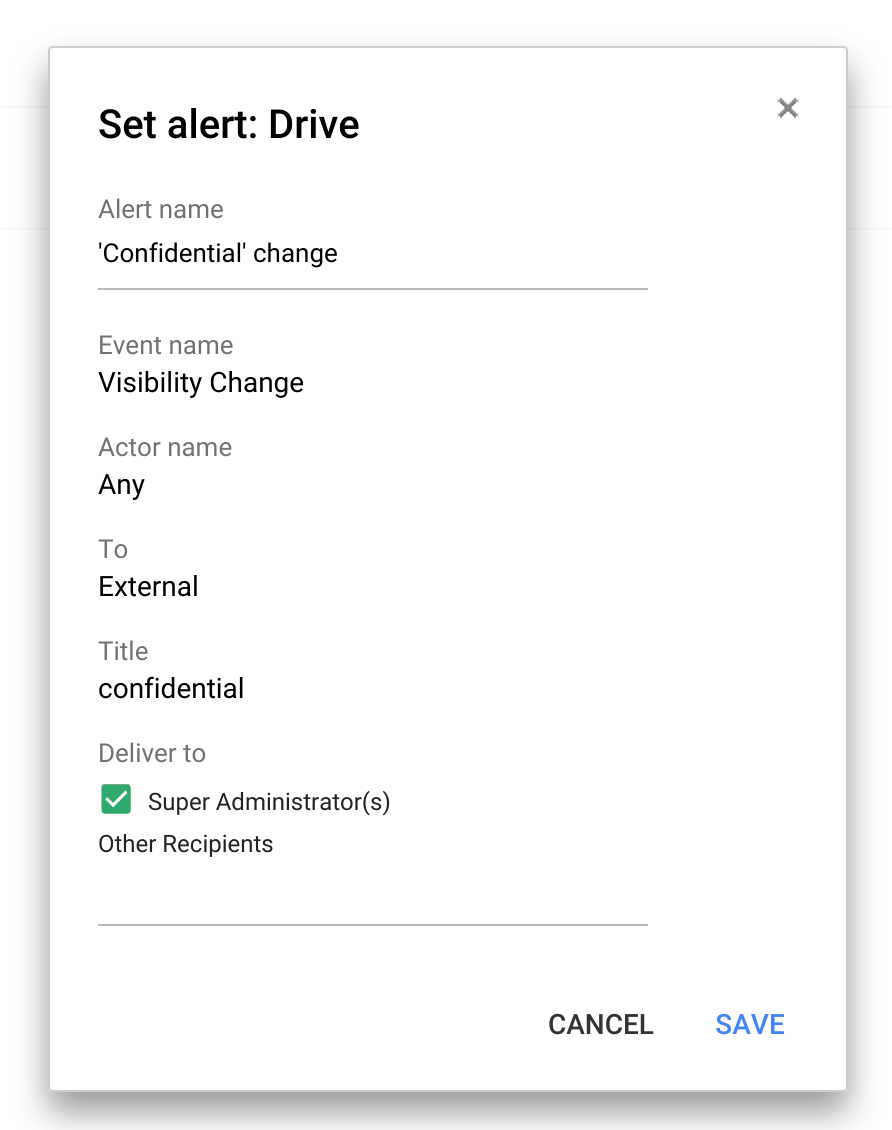
To keep track of when specific actions are taken in Drive, you can set up custom Drive alerts. So if you want to know when a file containing the word “confidential” in the title is shared outside the company, now you’ll know. And there are more events coming to Drive audit, including download, print and preview.
For all Google Apps for Work customers:
Set up custom admin alerts to find out when things change
There are lots of moving parts to running a company, and now it’s easier for IT to find out about the things they care about with custom alerts — like when a new app is installed or a shared calendar is deleted — and get those right in their inbox.
Let people reset their own passwords Recovering passwords isn’t the most pleasant thing we do in our lives. But now IT can let employees securely reset their own passwords, so they don’t lose valuable time being locked out of their account. If this doesn’t make sense for your organization, admins can simply turn this ability off.
Available for all to use:
Disable downloading, printing and copying of any file with IRM With Information Rights Management (“IRM”) you can disable downloading, printing and copying from the advanced sharing menu – perfect for when the file you’re sharing is only meant for a few select people. This new option is available for any file stored in Google Drive, including documents, spreadsheets and presentations created in Google Docs.
Share quickly with anyone outside your organization When it comes to sharing, like giving final inventory lists to your caterer or last minute logos to your design agency, you want to make sure people can see it right away — whether they use Drive or not. Now, you can share with any email address and they’ll be able to view the files you share —without having to sign-in to a Google account. Admins can disable this feature for certain departments that want to require sign-in before , while enabling it for others.
All the above are rolling out over the next month.
Stay tuned for more We’re also working on the ability to establish trusted domains, so businesses and schools that have multiple Google Apps domains or want to work with trusted partners or customers, can select multiple Google Apps domains that are OK to share with from Drive and Classroom. And on expiring access, because occasionally you only want to share files for a temporary amount of time. With expiring access you can set a future date when access will be removed. Stay tuned, theres more to come from Drive and Drive for Work.
Some time ago I described a method to format the /data partition on the HTC One (M7) - How to: Fix a corrupted DATA partition on the HTC One. This method is suitable for more HTC devices (all with EXT4 support) and with the mkfs.ext4 tool you can format system and cache partitions as well. All you need to know is the proper /dev/block/mmcblk0pXY number of the partition you want to format.
However, formatting the partition always means that your data will be gone. On the HTC One M8 I noticed a problem, most likely caused by the wp_mod.ko module (module to disable system R/W protection). When the module is loaded too late and anything ever gets changed before the module is loaded the file-structure of the /data partition might (and probably will) get corrupted. As a result your device will reboot each time youll try to make and change on the /system partition (even if mounted as RW). So removing, copying, moving, re-naming or editing any file on a system partition will result with the following message in the kernel log (last_kmsg.txt):
Formatting the /data partition is not the best idea for some and its not needed in most cases.
Repair Process
Download this mini-sdk package and extract it to c:mini-sdk
Download this fsck.ext4 binary and put it into c:mini-sdk
Connect your device to the PC
Boot your device in recovery mode
Open a command prompt on the PC (cmd.exe), type and confirm each command with ENTER:
cd /d c:mini-sdk
adb push fsck.ext4 /tmp
adb shell
chmod 777 /tmp/fsck.ext4
/tmp/fsck.ext4 -fn /dev/block/mmcblk0p47
This will fix your /data partition and you should see the following output (numbers in the last line will be different in each case):
Your /data partition is now fixed and you should no longer experience random reboots problem on your device (assuming that the corrupted /data partition was the source of the problem). Keep in mind that the fsck.ext4 -fn command can be used to check other EXT4 partitions on any device that has EXT4 file-system structure. All you need to know is the partition name or block number.
Do you have any questions or comments? Feel free to share! Also, if you like this article, please use media sharing buttons (Twitter, G+, Facebook) below this post!
For latest news follow Android RevolutionHD on popular social platforms:
Posted by Ed Bindl, Senior Software Engineer and Jacinda Shelly, Lead Platform Engineer, Doctor on Demand
Editors note: Since the launch of Google Maps ten years ago, maps have come a long way. To celebrate a decade of map innovation, we’re highlighting unique maps built by our developer community. Read how guest bloggers, Ed Bindl and Jacinda Shelly, Software Engineers for Doctor on Demand, use the Google Maps APIs to bring unique mapping experiences to users.
Maps can do much more for an online business than help people get from point A to point B. You might not think that a website for making video appointments with medical professionals would benefit from mapping — but at Doctor on Demand, maps connect our patients to physicians faster and allow physicians to prescribe medications at the right pharmacies. Google Maps make our user experience much more satisfying, which means patients will use our service again.
We use the Google Maps APIs, including the Geolocation and Javascript APIs, to show patients a map of nearby pharmacies before they start a video call with a medical professional. For our users, maps make it easy and convenient to connect with physicians and pick up prescriptions at the pharmacy. But maps can be helpful for other businesses in other ways. And now that we see the great value of incorporating reliable map functionality into our app, wed love to share how you can do the same:
Choose a familiar interface. Use a map that’s easy for people to navigate – if it’s hard to understand and requires extensive instructions, they won’t use it. We picked Google Maps because our patients know them well.
Configure maps for many platforms. If your users find maps helpful on your desktop website, they’ll want to use maps from any browser or device. We’ve made sure our maps work just as well on iOS and Android devices as they do on a desktop computer.
Maintain accuracy. In our case, we have to update the geolocation information for about 65,000 pharmacies across the country every evening. We use the Google Maps Geocoding API, which minimizes the time it takes to keep our map accurate. We keep a database of all pharmacies from Surescripts, a healthcare network, and each night we get an update to that database that adds, removes, and updates pharmacies and their locations. We use the Google Maps Javascript API to place the pharmacies on our map when a patient is asked to select a pharmacy.
Meet compliance standards. In order to comply with medical regulations, Doctor On Demand must connect patients with physicians licensed in their state. We use the Google Maps Reverse Geocoding API to accurately determine the state a patient is located in before connecting them with a physician.
Help users save time and make better choices. Before we built our pharmacy map, patients had to tell doctors which pharmacy they wanted to use. Then doctors emailed us the details. However, our support team had to follow up with doctors and patients to make sure we had the right pharmacy, since patients might say something like, “the drugstore down the street from my house.” Today, there’s no doubt about which pharmacy is the right one, since patients can clearly see their local outlets on the map.
Our pharmacy map inspires us to think about new ways to use maps in the future – like plotting the movement of cold and flu outbreaks and sharing this data with patients and doctors. We see a direct connection between maps and improving patient care. In the greater scheme, Google Maps improve the health of our patients, and, the health of our business.
We’ve been helping users discover relevant content from Android apps in Google search results for a while now. Starting today, we’re bringing App Indexing to iOS apps as well. This means users on both Android and iOS will be able to open mobile app content straight from Google Search.
Indexed links from an initial group of apps we’ve been working with will begin appearing on iOS in search results both in the Google App and Chrome for signed-in users globally in the coming weeks:
How to get your iOS app indexed
While App Indexing for iOS is launching with a small group of test partners initially, we’re working to make this technology available to more app developers as soon as possible. In the meantime, here are the steps to get a head start on App Indexing for iOS:
Add deep linking support to your iOS app.
Make sure it’s possible to return to Search results with one click.
Provide deep link annotations on your site.
Let us know you’re interested. Keep in mind that expressing interest does not automatically guarantee getting app deep links in iOS search results.
If you happen to be attending Google I/O this week, stop by our talk titled “Get your app in the Google index” to learn more about App Indexing. You’ll also find detailed documentation on App Indexing for iOS at g.co/AppIndexing. If you’ve got more questions, drop by our Webmaster help forum.
This method is an official one, recommended by the HTC Technical Support Team. Finally we have some alternative to the old myth related with re-calibrating the battery by removing the batterystats.bin file from /data/system location, as it has no impact on the battery life.
So if youre having some problems with battery life, for example it rapidly or erratically discharges (the battery indicator says 18% left but then suddenly, 5 seconds later your device is OFF) this procedure should help, as it clears all battery stats, coordinates and normalizes charging. At least HTC Technical Support says that :)
The procedure is simple:
Make sure that Fastboot option is disabled in Power settings.
Turn off your phone.
Plug phone into HTC charger and charge for two minutes or more.
While charging, hold down volume-up + volume-down + power button and continue holding. Phone will turn on and off repeatedly every 15 seconds or so while continuing to hold all three buttons.
Keep this going for 2 minutes, then release all buttons when phone is ON.
Now, let phone charge fully normally (with phone either on or off) and battery level reporting, charging and battery life should be normalized.
So... have you tried it? Did it help? Let me know!
Do you have any questions or comments? Feel free to share! Also, if you like this article, please use media sharing buttons (Twitter, G+, Facebook) below this post!
For latest news follow Android RevolutionHD on popular social platforms:
Blizzard has announced that StarCraft 2 "is probably going to get delayed again and split into three parts. Part 1, which features a Terran single player campaign, is still targeted to be out sometime in 2009."
You wont get to play Zerg or Protoss, though, since their single player campaigns have been plucked out and turned into expansion packs, which will be released one and two years respectively after part 1.
The Apple brand has the biggest impact on the worlds consumers, while Microsoft and the United States nation brand are those considered most in need of a remake, a survey showed on Monday.
The poll by online magazine brandchannel.com asked its readers to identify the brands with the greatest impact on their lives, and say how they affected readers behaviour and their view of the world.
The nearly 2,000 professionals and students who voted named Apple overwhelming winner. The creator of the iPod and Mac computer triumphed in six categories including most inspiring brand and the one readers cannot live without.
Microsoft, the worlds largest software maker was also a winner, but it received the dubious honor of the brand most readers wanted to argue with, and the one they most wanted to revamp. Voted into second place in the category was brand USA.
"Apple has clearly captured the hearts and minds by leading across most categories. Others, such as the USA nation brand, which ranks highly as most in need of a rebrand, requires help according to our readers," said brandchannel editor Jim Thompson.
The poll does not take account of economic brand value, the murky science of assigning a financial value to brand, which regularly puts Coca-Cola Cos (KO.N) Coke in first place.
One of the more surprising results from the survey, was that few of the respondents -- who came from 107 countries -- thought that there was such a thing as a "green" brand.
The result comes despite millions of dollars spent by some of the worlds biggest companies to rebrand themselves as "environmentally-friendly."
Discussing Apple, one anonymous reader said there was "never a dull moment" with the company "reinventing itself all along and providing, over and over again, a new perspective on what we thought was carved in stone."
At the other end of the spectrum, Microsoft had "gone from innovative and bold to stodgy and follower," said another unnamed reader.
After Apple, the most inspiring brands were Nike, Coca-Cola, Google and Starbucks, the survey showed.
The same brands, except with Virgin in place of Starbucks, were the brands most readers would "like to sit next to at a dinner party."
The rankings by brandchannel.com were based on answers from almost 2,000 readers from 107 countries. The survey was conducted online from February 24 to March 9.
LG at CES 2013 its two new slider tablet with Windows 8 presented. Both the LG Tab Book Z160 Ultra, as well as the LG Tab Book H160 come with a central hinge and therefore each based Intel Core and Atom processors.
Externally, the two new devices are very similar, they offer both a 11.6-inch display with 1366 × 768 pixels, the touch of a button when needed slips up and exposes an underlying keyboard. When atomic model that Nicole has seen in the below video for us, it is probably the cheaper version, as it known from other Tablets Atom Z2760 comes with a 1.8-gigahertz dual-core used. The model with Intel Core i5 CPU will be much more expensive and cost about 1000 euros, which we present to the Atom version no price information.
They all is well apart from the CPU almost completely identical. There are two GB of RAM and at least 64GB of SSD capacity. Added MicroSD card slot, Wi-Fi N, HDMI-out and two USB ports and a front camera for video calling. Despite fairly compact design with only 15.9 millimeters in height and just over a kilogram, the battery should provide enough capacity to at least make the H160 for a term of up to 12 hours.
Here is the easiest to do this firmware update: 1. Download Android Jelly Bean 4.2.2 v1.2 firmware image from: link1 or link2. 2. Put your Pipo S1 in firmware update mode. 3. Run Rockchip Batch Tool v1.7, select the proper image .img file from your desktop, and after your device is found by the program, press the Restore button and wait for 2-3 minutes to finish. The first boot is very long, wait about 5-7 minutes.
What we have at the moment: - Firmware 4.2.2 from PIPO S1S - Removed Chinese applications - Added root - Default language English - Customise kernel - G-sensor is operating - Camera is working - HDMI output is working - Antutu produces about 11.647 points - Wifi Display Miracast support - 2 GB of internal storage
Firmware provided by Cripple Guy. Credits for this firmware go to realmaple. 1. To install the CWM 6.0.2.7 please follow the update steps from this post. Then download CWM 6.0.3.1 from here or from here and copy it as it is on a micro SD card, install Quick Boot free from Play store, reboot into recovery, then choose install zip from sd card and apply the new CWM zip file from your card. Enjoy CWM 6.0.3.1 on your tablet!
Enjoy this firmware release, share is love!
Always keep in mind that this is not a review, just a first sight of this firmware. You have to test it more for another details, to see if it satisfies your needs.
In this post you will learn how to use Google Talk on Android for best game so get your device.
Google Talk which appears on Android phones or tablets as "Talk", is a free to text, chat or make video chat with your Google contacts.
While there are other applications available to text, talk or make video calls, Google Talk offers the opportunity to access your contacts who are using an iPhone, Android or other device such as a tablet or even their Gmail accounts on their computers.
Before starting to use Google Talk on Android you have to have a Google account if you do not have one you can go to mail.google.com and create one. The website will provide step by step instructions.
You created your Google account, you can add friends and contacts who are also Google.
How to use Google Talk on Android for text messages
1. Go to applications.
2. Select "Talk"
3. A list of Google contacts fill the screen.
4. Select a friend and write a message. This works like any other text message application.
How to use Google Talk on Android for a conversation
1. Select "Talk"
2. A list of Google contacts fill the screen
3. A microphone icon appears next to the friends that are available for a conversation.
4. Select the microphone button to invite a friend to talk.
5. Select the "X" button to end the conversation.
How to use Google Talk on Android for Video Chat
1. Select "Talk"
2. A list of Google contacts fill the screen.
3. A video button will appear next to friends that are available for a video chat.
4. Select the video button to invite your friend to video chat.